
Setting up a Laravel project correctly is important to avoid environment issues, dependency conflicts, and database connection problems. This guide explains the exact process our team should follow to run the project locally using XAMPP, Composer, Laravel, and MariaDB.
Tech Stack Used
-
Laravel
-
PHP 8.x
-
MariaDB / MySQL
-
XAMPP
-
Composer
-
HTML/CSS/JavaScript
1. Install Required Software
Install XAMPP
Download and install XAMPP:
https://www.apachefriends.org/
During installation make sure:
-
Apache is installed
-
MySQL/MariaDB is installed
-
PHP is included
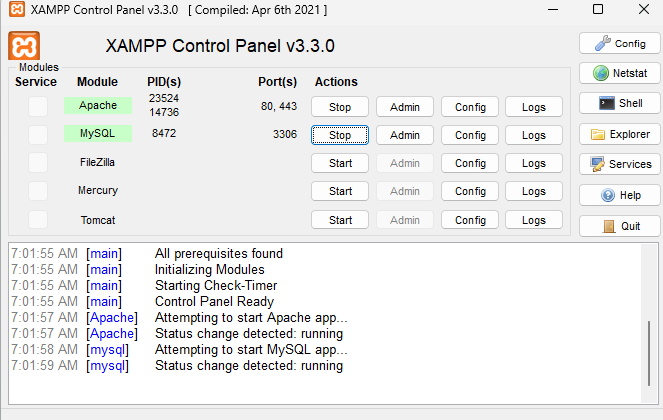
After installation:
-
Start Apache
-
Start MySQL
Install Composer
Download Composer:
https://getcomposer.org/download/
and click on : Composer-Setup.exe
During installation:
-
Select PHP path:
C:\xampp\php\php.exe
After installation verify Composer:
composer -V
Expected output:
Composer version 2.x.x

2. Clone the Project
Clone repository:
git clone YOUR_GITHUB_REPOSITORY_URL (open the project in your vscode)
open terminal of vscode, Move into project directory:
cd project-folder
3. Install Laravel Dependencies
Run:
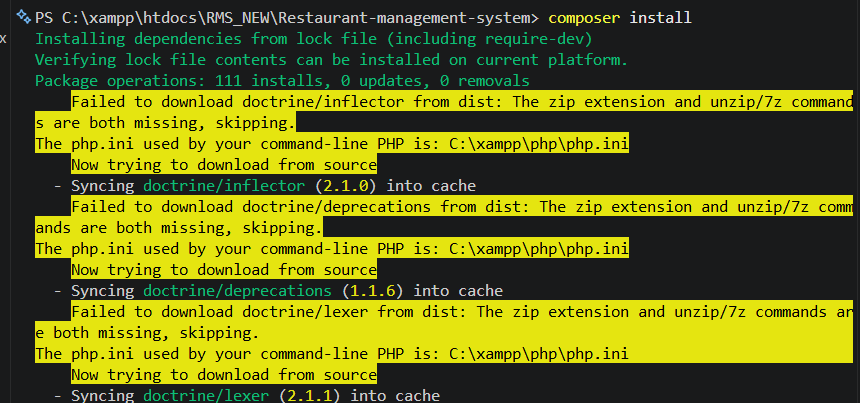
composer install
This command:
-
Downloads Laravel packages
-
Creates vendor folder
-
Installs framework dependencies
Important:
Do not stop the process midway. (it will take some time to install all dependance)
4. Create Environment File
Laravel requires a .env file.
Run:
copy .env.example .env
5. Generate Application Key
Run:
php artisan key:generate
Expected output:
Application key set successfully.

6. Create Database
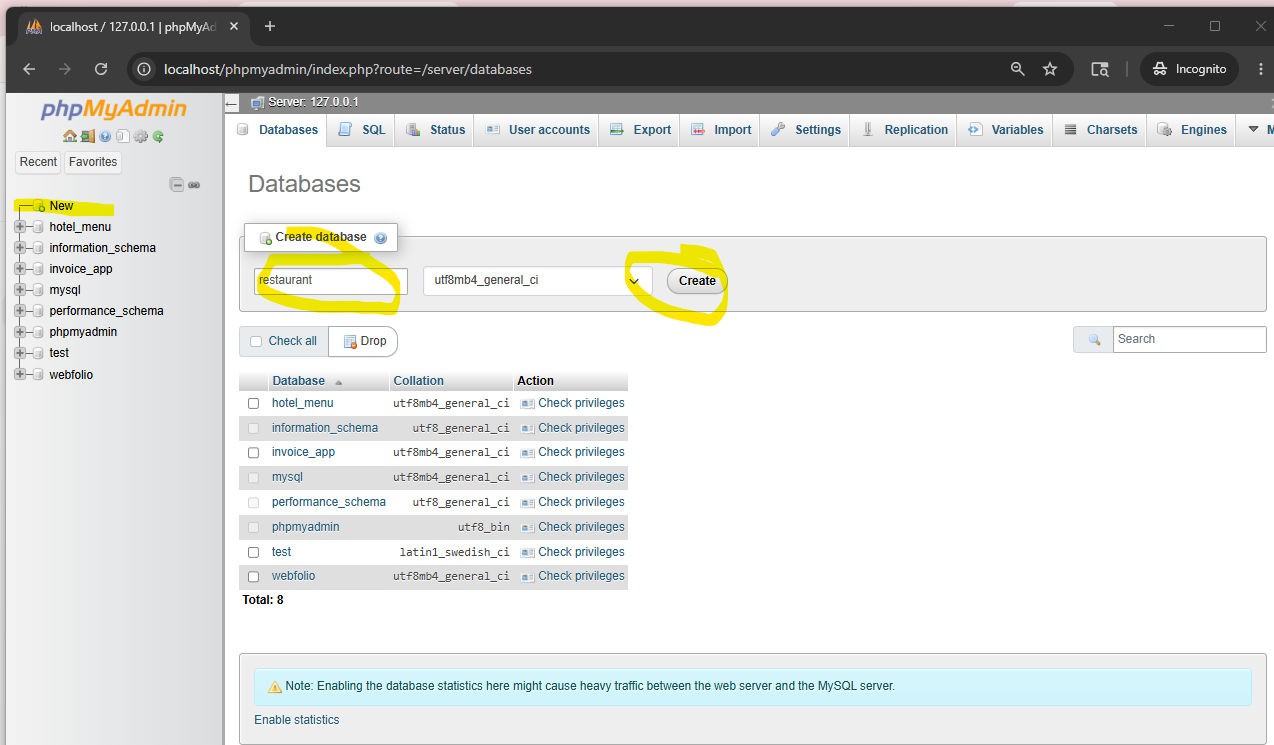
Open phpMyAdmin:
Create database:
restaurant_management or your own
7. Import Database
Import SQL file into the newly created database.
Steps:
-
Open phpMyAdmin
-
Select database
-
Click Import
-
Choose SQL file
-
Click Go
8. Configure Database in .env
Open .env file.
Update database settings:
DB_CONNECTION=mysql
DB_HOST=127.0.0.1
DB_PORT=3306
DB_DATABASE=restaurant_management
DB_USERNAME=root
DB_PASSWORD=
Note:
Default XAMPP MySQL password is usually empty.
9. Run Laravel Project
Recommended method:
php artisan serve
Expected output:
Server running on http://127.0.0.1:8000
Open in browser:
http://127.0.0.1:8000
Important Notes
Do NOT open Laravel directly like this:
localhost/project-folder
Laravel should run using:
-
php artisan serve
OR -
proper Apache virtual host configuration
Common Errors & Fixes
Error: vendor/autoload.php missing
Cause:
-
Composer dependencies not installed
Fix:
composer install
Error: composer not recognized
Cause:
-
Composer not installed or PATH issue
Fix:
-
Reinstall Composer
-
Restart VS Code/Terminal
Error: APP_KEY missing
Fix:
php artisan key:generate
Error: Database connection failed
Check:
-
MySQL running in XAMPP
-
Database exists
-
.envcredentials correct
Useful Commands
Start Laravel
php artisan serve
Clear Cache
php artisan optimize:clear
Run Migrations
php artisan migrate
Install Composer Packages
composer install
Update Packages
composer update
Final Checklist
Before running project ensure:
-
XAMPP installed
-
Apache running
-
MySQL running
-
Composer installed
-
.envcreated -
Database imported
-
composer installcompleted -
Application key generated
Conclusion
Following this setup process ensures:
-
consistent development environment
-
fewer dependency issues
-
proper Laravel execution
-
stable database connectivity
-
smoother onboarding for new developers
All team members should follow the same setup process to maintain consistency across local environments.
Comments
No comments yet.