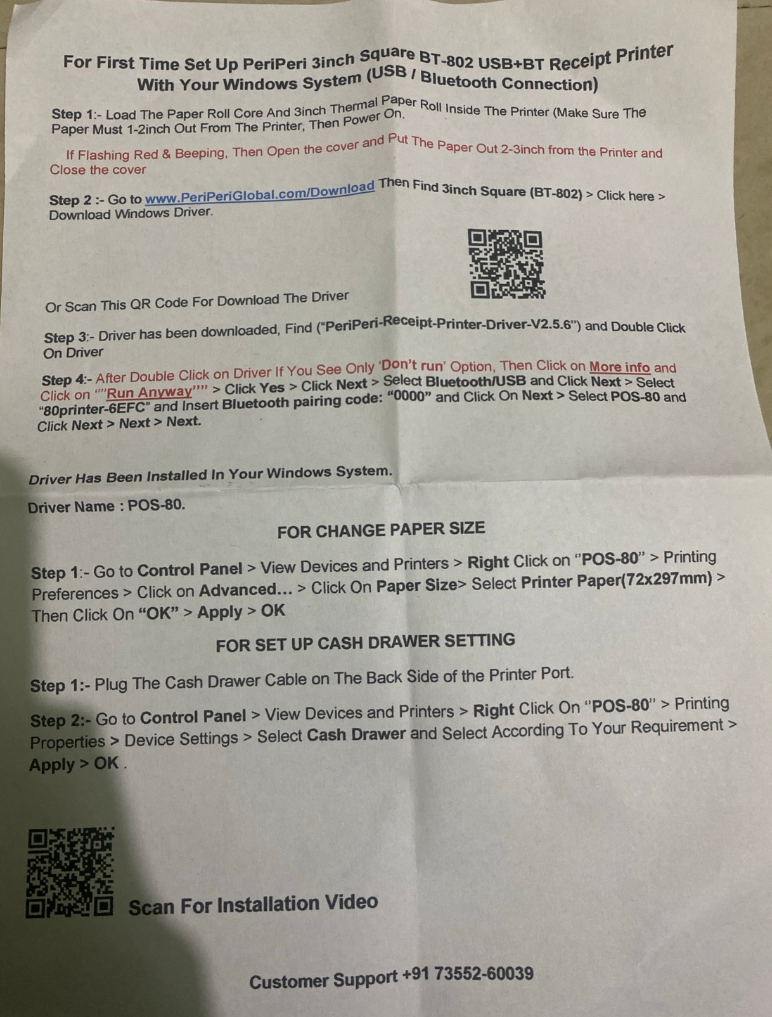
For First Time Set Up PeriPeri 3inch Square BT-802 USB+BT Receipt Printer With Your Windows System (USB / Bluetooth Connection)
Step 1: Load The Paper Roll Core And 3inch Thermal Paper Roll Inside The Printer (Make Sure The Paper Must 1-2inch Out From The Printer, Then Power On.
Note: If Flashing Red & Beeping, Then Open the cover and Put The Paper Out 2-3inch from the Printer and Close the cover
Step 2: Go to www.PeriPeriGlobal.com/Download Then Find 3inch Square (BT-802) > Click here > Download Windows Driver. (Or Scan This QR Code For Download The Driver)
Step 3: Driver has been downloaded, Find ("PeriPeri-Receipt-Printer-Driver-V2.5.6") and Double Click On Driver.
Step 4: After Double Click on Driver If You See Only 'Don't run' Option, Then Click on More info and Click on "Run Anyway" > Click Yes > Click Next > Select Bluetooth/USB and Click Next > Select "80printer-6EFC" and Insert Bluetooth pairing code: "0000" and Click On Next > Select POS-80 and Click Next > Next > Next.
Driver Has Been Installed In Your Windows System. Driver Name: POS-80.
FOR CHANGE PAPER SIZE
Step 1: Go to Control Panel > View Devices and Printers > Right Click on "POS-80" > Printing Preferences > Click on Advanced... > Click On Paper Size> Select Printer Paper(72x297mm) > Then Click On "OK" > Apply > OK
FOR SET UP CASH DRAWER SETTING
Step 1: Plug The Cash Drawer Cable on The Back Side of the Printer Port.
Step 2: Go to Control Panel > View Devices and Printers > Right Click On "POS-80" > Printing Properties > Device Settings > Select Cash Drawer and Select According To Your Requirement > Apply > OK.
Scan For Installation Video (QR Code provided in manual) Customer Support: +91 73552-60039
Comments
No comments yet.