What is Git?
- Git is a distributed version control system used to track code changes, collaborate with teams, and manage software versions efficiently.
What is GitHub?
- GitHub is a cloud platform that hosts Git repositories and provides collaboration features such as:
- Pull Requests
-
Branch Management
- Team Access Control
- Issue Tracking
- Code Review
- Collaboration Workflow
Why Webzynix move to Branch machanisum?
To maintain clean, secure, and professional software development practices, Webzynix Technologies follows a structured GitHub branch workflow.
This workflow helps:
- Avoid accidental production issues
- Review code before deployment
- Test changes properly
- Maintain clean version history
- Collaborate safely within teams
This guide explains how developers, QA team members, and admins should work with GitHub branches and Pull Requests (PRs).
| Command Name | Command | Description |
|---|---|---|
| Check Git Version | git --version |
Verify Git installation |
| Configure Username | git config --global user.name "Your Name" |
Set Git username |
| Configure Email | git config --global user.email "yourmail@example.com" |
Set Git email |
| Verify Git Config | git config --list |
View Git configuration |
| Enable Credential Manager | git config --global credential.helper manager |
Save GitHub login credentials securely |
| Clone Repository | git clone <repo-url> |
Download repository from GitHub |
| Open Project Folder | cd project-name |
Move into project folder |
| Fetch Latest Branches | git fetch origin |
Download latest branch references from GitHub |
| View All Branches | git branch -a |
Show local and remote branches |
| View Current Branch | git branch |
Show current active branch |
| Switch Branch | git checkout dev |
Switch to another branch |
| Create & Switch Branch | git checkout -b branch-name |
Create new branch locally |
| Create Branch from Remote | git checkout -b dev origin/dev |
Create local branch from remote branch |
| Pull Latest Changes | git pull origin dev |
Download latest branch code |
| Check File Status | git status |
Show modified/untracked files |
| Add All Files | git add . |
Stage all changed files |
| Add Specific File | git add filename.php |
Stage specific file |
| Commit Changes | git commit -m "message" |
Save changes locally |
| Push Changes | git push origin dev |
Upload changes to GitHub |
| Push First Time Branch | git push -u origin dev |
Push and track branch |
| View Commit History | git log |
Show commit history |
| View One Line Logs | git log --oneline |
Compact commit history |
| Compare Changes | git diff |
Show code differences |
| Compare Staged Changes | git diff --staged |
Show staged differences |
| Restore File | git restore filename.php |
Undo file modifications |
| Restore All Changes | git restore . |
Undo all local changes |
| Delete Untracked Files | git clean -fd |
Remove untracked files/folders |
| Hard Reset Branch | git reset --hard origin/qa |
Make local branch exactly same as remote |
| Soft Reset Commit | git reset --soft HEAD~1 |
Undo last commit but keep files |
| Remove Cached File | git rm --cached filename |
Remove file from Git tracking |
| Delete Branch Local | git branch -d branch-name |
Delete local branch |
| Delete Branch Force | git branch -D branch-name |
Force delete local branch |
| Delete Remote Branch | git push origin --delete branch-name |
Delete branch from GitHub |
| Merge Branch | git merge dev |
Merge another branch into current branch |
| Stash Changes | git stash |
Temporarily save local changes |
| Restore Stash | git stash pop |
Restore stashed changes |
| View Stash List | git stash list |
Show stashed items |
| Create Tag | git tag v1.0 |
Create version tag |
| Push Tags | git push --tags |
Upload tags to GitHub |
| Show Remote URL | git remote -v |
Show GitHub repository URL |
| Change Remote URL | git remote set-url origin <url> |
Update GitHub repository URL |
| Initialize Git | git init |
Initialize local Git repository |
| Check Remote Branches | git branch -r |
Show remote branches |
| Rename Branch | git branch -m old-name new-name |
Rename branch |
| Cherry Pick Commit | git cherry-pick <commit-id> |
Copy commit from another branch |
| Abort Merge | git merge --abort |
Cancel merge conflict process |
| Abort Rebase | git rebase --abort |
Cancel rebase process |
| Pull with Rebase | git pull --rebase origin dev |
Pull without merge commit |
| Show Current Commit | git rev-parse HEAD |
Display current commit hash |
| Show File History | git log -- filename.php |
View file-specific history |
| Show Last Commit | git show |
Display latest commit details |
| Remove Last Commit | git reset --hard HEAD~1 |
Delete last commit completely |
| Create Pull Request | GitHub UI | Raise PR between branches |
| Merge Pull Request | GitHub UI | Merge branch changes |
| Approve Pull Request | GitHub UI | Approve PR review |
| Request Changes in PR | GitHub UI | Reject PR until fixes done |
| Compare Branches | GitHub Compare UI | Compare branch differences |
| Request Reviewer | GitHub PR UI | Add admin/lead review request |
Our GitHub Branch Structure
We use three main branches:
| Branch | Purpose |
|---|---|
| dev | Development branch where developers work |
| qa | Testing and QA validation branch |
| main | Production/live stable branch |
Workflow Overview
Development workflow:
Developer Coding
↓ (push commits)
DEV Branch
↓ (after final code ready to deploy to QA team for test)
Pull Request (PR) → QA Branch
↓ (reviewer will review and merge the branch to QA)
QA Testing
↓ (After testing done and no issues found and ready for production)
Pull Request (PR) → MAIN
↓
Admin Review & Approval
↓
Production Release
Important Team Rules
Developers Must
- Work only in the
devbranch - Never push directly to
main - Raise Pull Requests properly
- Write meaningful commit messages
- Test code before pushing
QA Team Must
- Validate all changes in
qa - Check functionality and bugs
- Verify production readiness
- Raise PR from
qatomain
Team Lead/Manager/Admin Responsibilities
- Review final QA-approved code
- Approve production merge
- Maintain branch stability
- Monitor deployment quality
Step 1: Install Git
Download Git from the official website: https://git-scm.com/downloads
and Install Git using default settings.
Verify Git Installation : git --version
Example Output: git version 2.49.0
Step 2: Configure Git Username and Email
- Set Git Username : git config --global user.name "Your Name"
- Set Git Email : git config --global user.email "yourmail@example.com"
- Verify Configuration : git config --list
Step 3: Configure GitHub Authentication
GitHub no longer supports password authentication directly for Git operations. Instead, use a Personal Access Token (PAT).
Enable Credential Manager : git config --global credential.helper manager
This securely stores credentials and avoids entering password repeatedly.
Step 4: Create GitHub Personal Access Token
Open: https://github.com/settings/tokens
Create a token with repository access permissions. When Git asks for credentials during first push/pull:
Username : Use your GitHub username.
Password : Use the Personal Access Token instead of GitHub password.
With this your setup done
1) Open the Vs code , go to the vs code terminial
2) Clone the Project Repository : git clone https://github.com/webzynix-technologies/Hotel_management_free.git
3) Open Project Folder: cd <project folder>
4) View Availble Branches : git branch -a
Example Branches:
- main
- dev
- qa
5) Switch to Development Branch
git checkout dev

If dev branch is not available locally: git checkout -b dev origin/dev
If still getting error then try :
git fetch origin
git branch -a
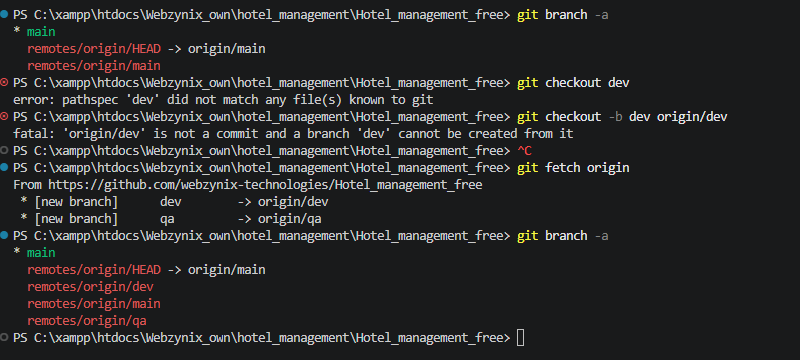
6) Verify Current Branch
git branch
Current branch will display like:
* dev
This means developer is currently working inside the dev branch.
7) Pull Latest Code Before Starting Work (Always download latest updates before starting development.)
git pull origin dev
8) Open Project in VS Code
Open the project folder in VS Code and start development.
Developers should always work only on: dev branch
Never directly work on: main branch / qa branch
9) Check Modified Files
git status
This command shows:
Modified files
Added files
Deleted files
Current branch status
10) Add Files to Git
Add All Files : git add .
Add Single File : git add login.php
11) Create Commit
git commit -m "Fixed login validation issue"
Commit messages should clearly explain what changes were made.
Good Examples:
git commit -m "Added owner dashboard reports"
git commit -m "Fixed checkout calculation issue"
git commit -m "Updated hotel booking UI"
12) Push Changes to DEV Branch
git push origin dev
This uploads developer code changes into GitHub dev branch.
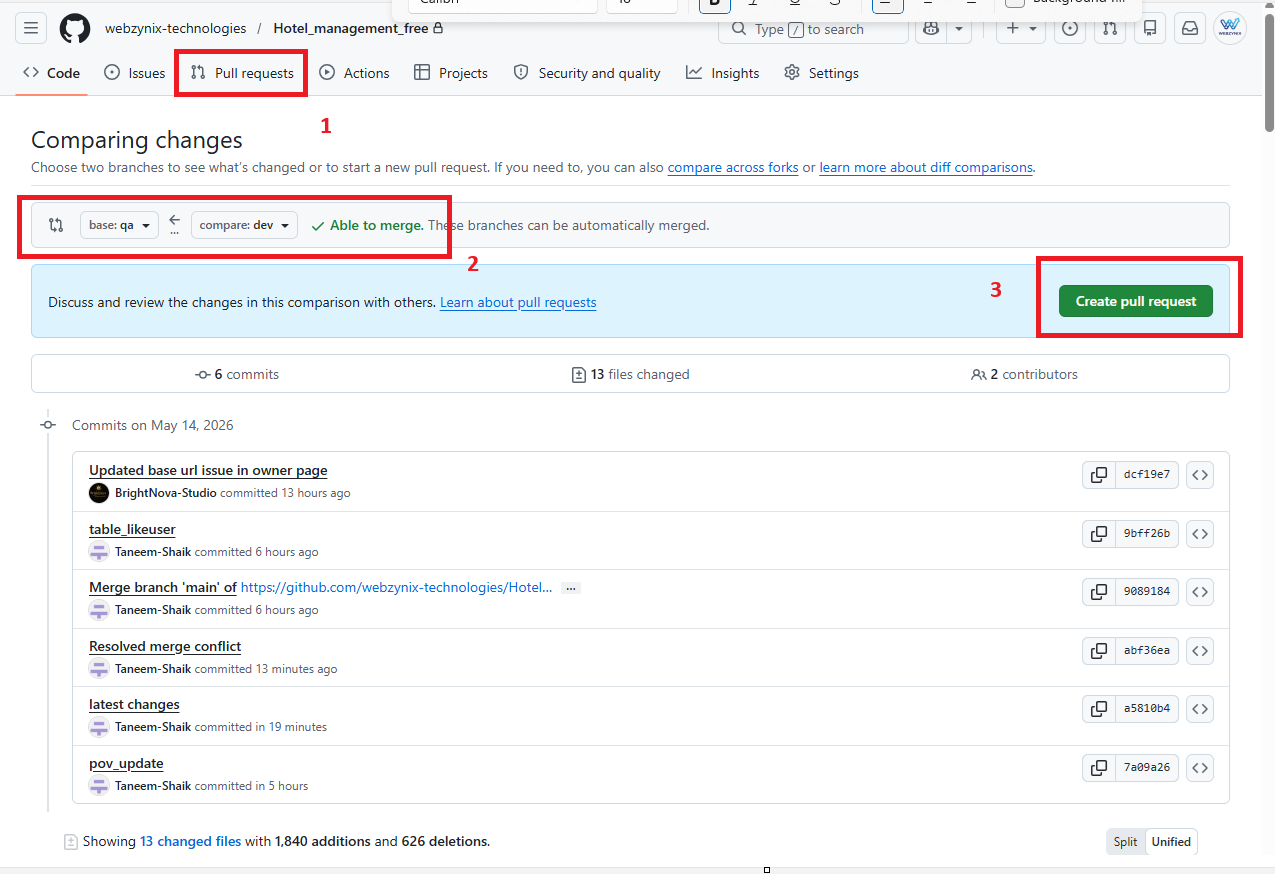
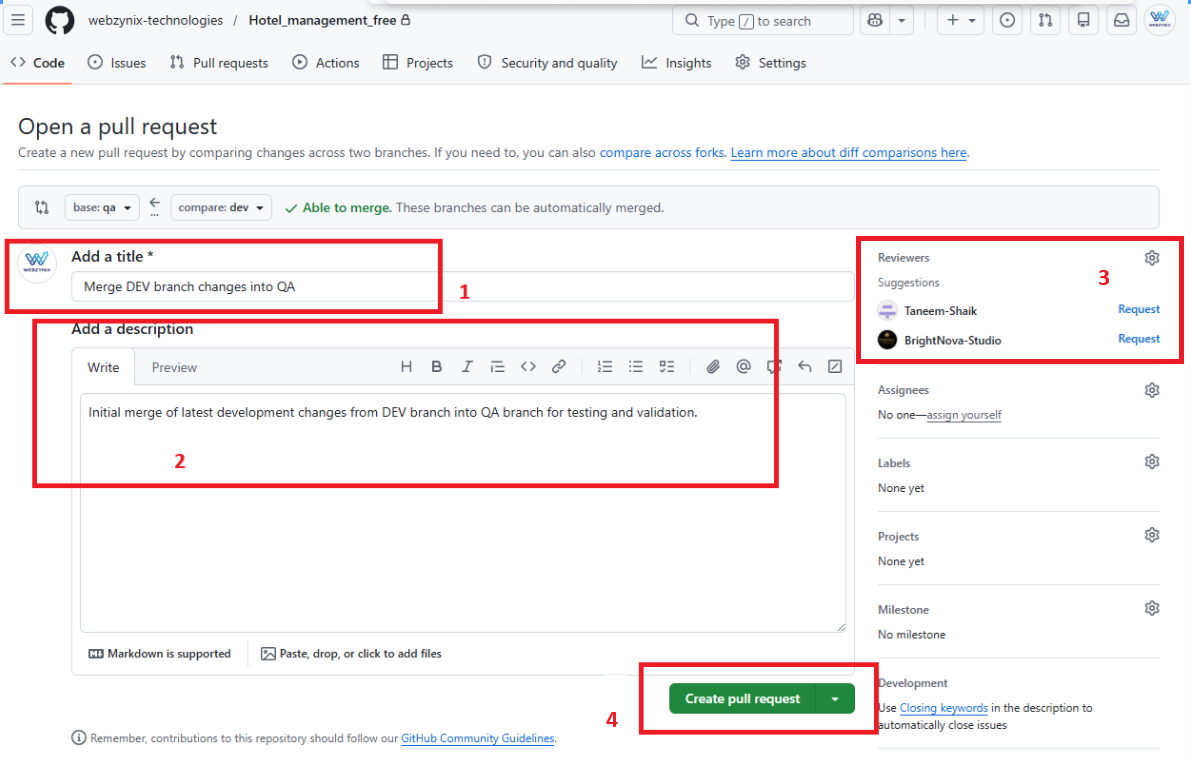
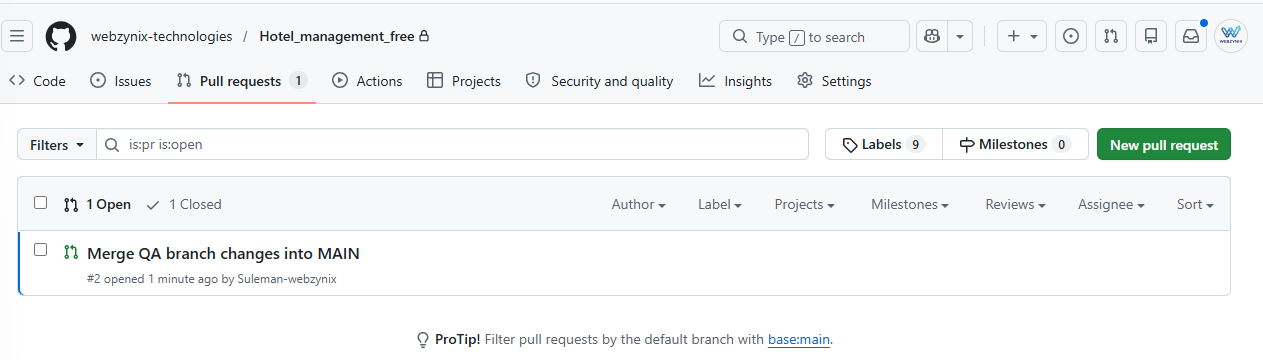
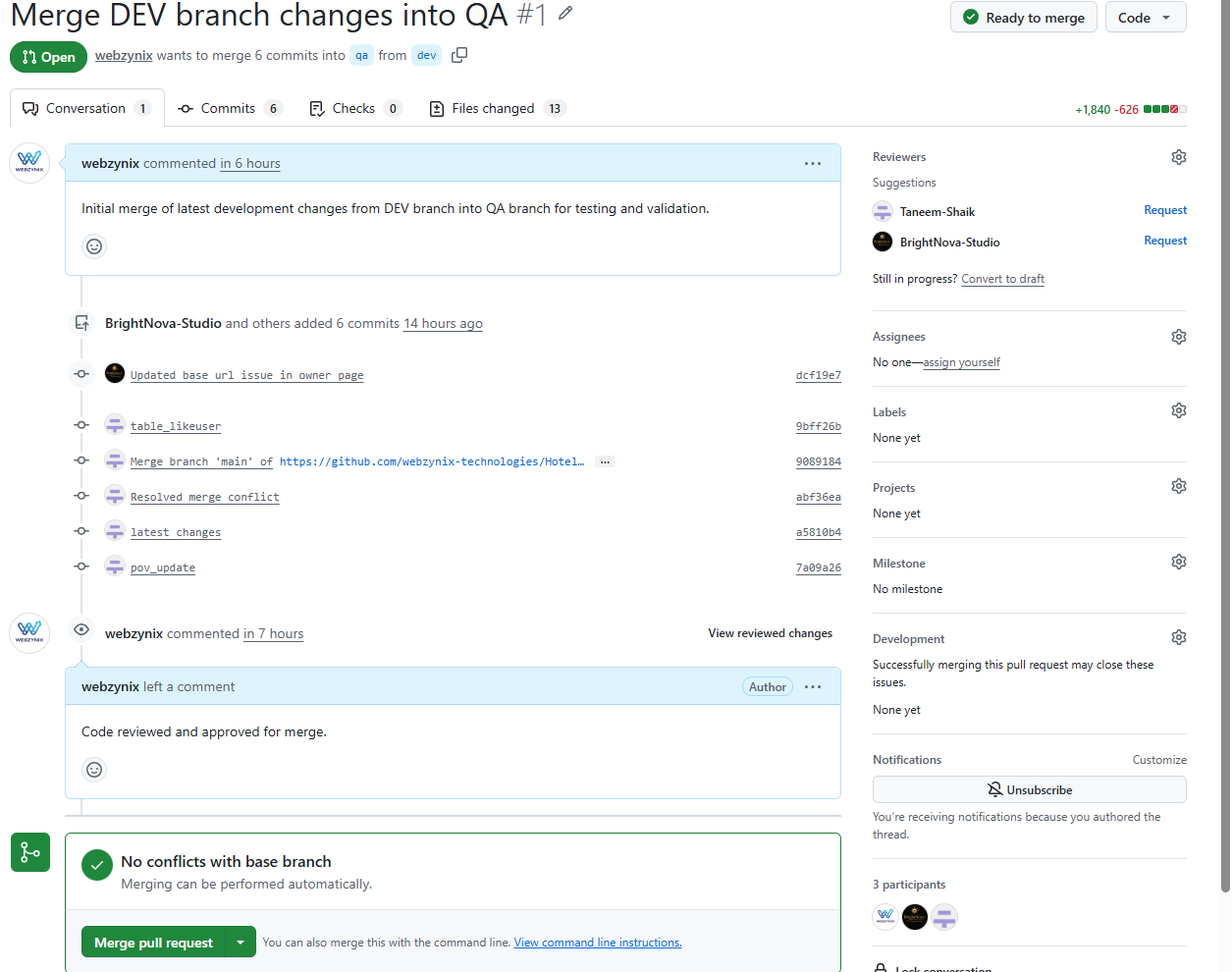

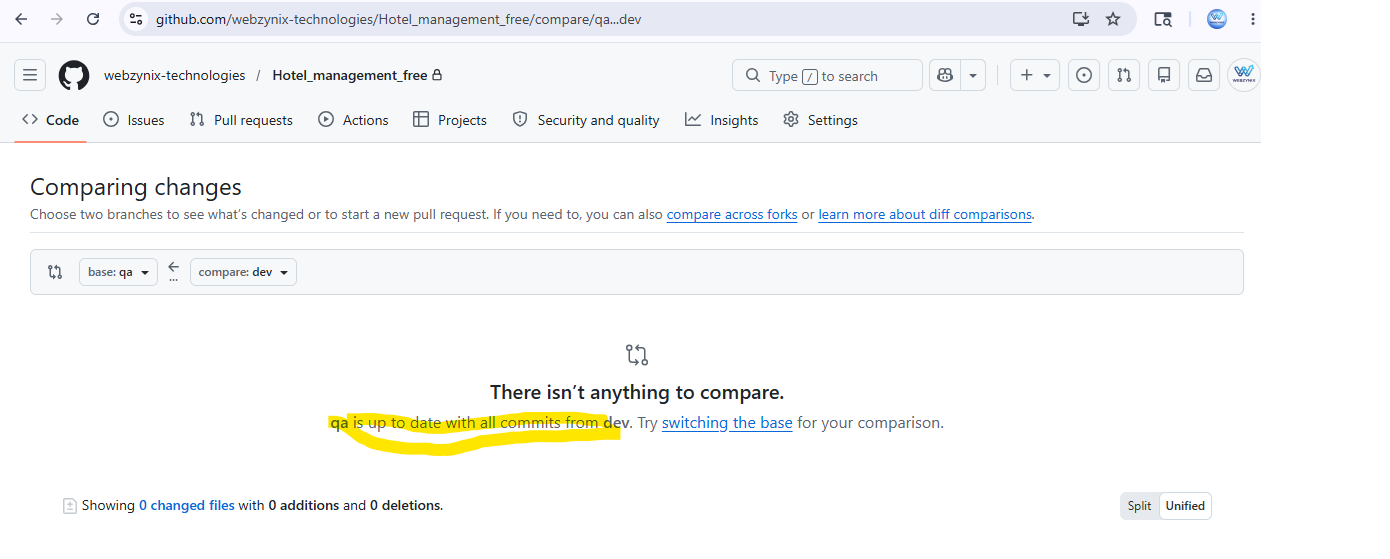
From QA to Main Merge:
https://github.com/webzynix-technologies/Hotel_management_free/compare/main...qa
If it shows up to date, then there is no need to raise the ticket.
else:
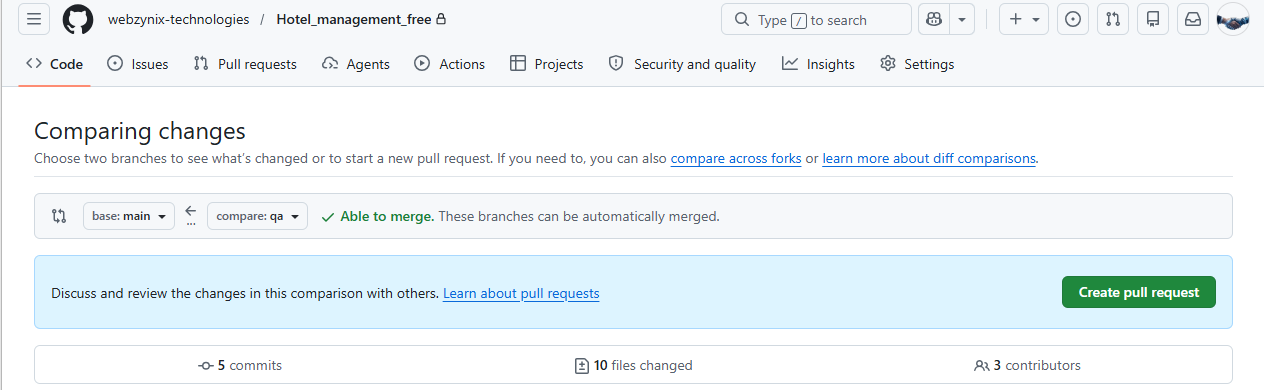
Introduction
Sometimes local Git repositories become messy due to:
- Unwanted local changes
- Temporary testing files
- Extra uploads/images
- Merge conflicts
- Deleted files
- Untracked folders
- AI tool temporary folders
- Old development data
In such cases, developers may want to completely clean the local repository and make it exactly identical to the remote GitHub branch.
This guide explains how to safely reset the local repository and sync it fully with the remote branch.
When This Process Is Useful
Use this method when:
- Local project contains unwanted files
- QA branch should exactly match GitHub
- Temporary testing data should be removed
- Pull operation created local conflicts
- Repository became messy
- You want a completely fresh branch copy
Important Warning
This process permanently removes:
- Uncommitted local changes
- Untracked files
- Extra folders
- Temporary files
- Local modifications
Do NOT use these commands if important local work is not committed or backed up.
Example Scenario
Suppose:
- GitHub QA branch is correct
- Local QA branch has extra files and changes
You want:
Local QA branch = Exact GitHub QA branchStep 1 — Switch to Correct Branch
First switch to the branch you want to clean.
Example:
git checkout qaVerify current branch:
git branchExpected:
* qaStep 2 — Fetch Latest Remote Data
Download latest branch information from GitHub.
git fetch originThis updates remote references locally.
Step 3 — Reset Local Branch to Remote Branch
Run:
git reset --hard origin/qaThis command:
- Removes local modifications
- Resets tracked files
- Makes local tracked files identical to GitHub QA branch
Step 4 — Remove Extra Untracked Files and Folders
Run:
git clean -fdThis removes:
- Extra local folders
- Temporary files
- Untracked uploads
- Testing files
- Extra directories
Step 5 — Verify Repository Status
Run:
git statusExpected output:
On branch qa
Your branch is up to date with 'origin/qa'.

nothing to commit, working tree clean
This means:
Local repository is now exactly same as GitHub QA branch.Understanding Important Commands
| Command | Purpose |
|---|---|
git fetch origin |
Download latest branch references |
git reset --hard origin/qa |
Reset tracked files to remote QA branch |
git clean -fd |
Delete extra local files and folders |
git status |
Verify repository cleanliness |
git branch |
Verify current branch |
What Does git reset --hard Do?
Example:
git reset --hard origin/qaThis command:
- Removes local file modifications
- Resets commits
- Matches remote tracked files exactly
It affects only tracked Git files.
What Does git clean -fd Do?
Example:
git clean -fdThis command removes:
- Untracked files
- Untracked folders
- Temporary project data
Example:
- uploads/
- test folders
- temp images
- generated files
Common Real-World Use Cases
Scenario 1 — Wrong Local Testing Files
Developer accidentally created:
test/
demo/
temp_uploads/
These can be cleaned safely.
Scenario 2 — Merge Became Messy
After pull/merge conflicts:
Repository became unstable locallyReseting fixes repository quickly.
Scenario 3 — QA Machine Needs Fresh Copy
QA systems often need:
Exact remote QA branch stateThis process ensures clean testing environment.
Recommended Safety Practices
Before running reset commands:
Option 1 — Commit Important Changes
git add .
git commit -m "Backup before reset"
Option 2 — Temporary Stash
git stashRestore later:
git stash popRecommended Workflow After Reset
After cleaning:
git pull origin qaThen continue testing/development normally.
Useful Verification Commands
Check Current Branch
git branchCheck Repository Status
git statusCompare Branches
Example:
https://github.com/webzynix-technologies/Hotel_management_free/compare/qa...dev
Comments
No comments yet.